Listen aloud is not supported in this browser.
Quick Start
Create your account, sign in, and explore the ATPAlgo dashboard and main menu.
How to get here
Navigation: Login / Signup › Dashboard — Create account · Sign in · Dashboard · Profile settings
Workflow
- 1Create account
Sign up, or continue with Google.
- 2Sign in
Username & password, or Google.
- 3Dashboard & menu
Navigate the app from the main menu.
- 4Connect broker
Link a broker or use Paper Trade.
- 5Build strategy
Start new or clone a template.
- 6Run backtest
Validate on historical data.
- 7Deploy run
Go live or paper.
- 8Monitor
Track P&L on the dashboard.
Step-by-Step
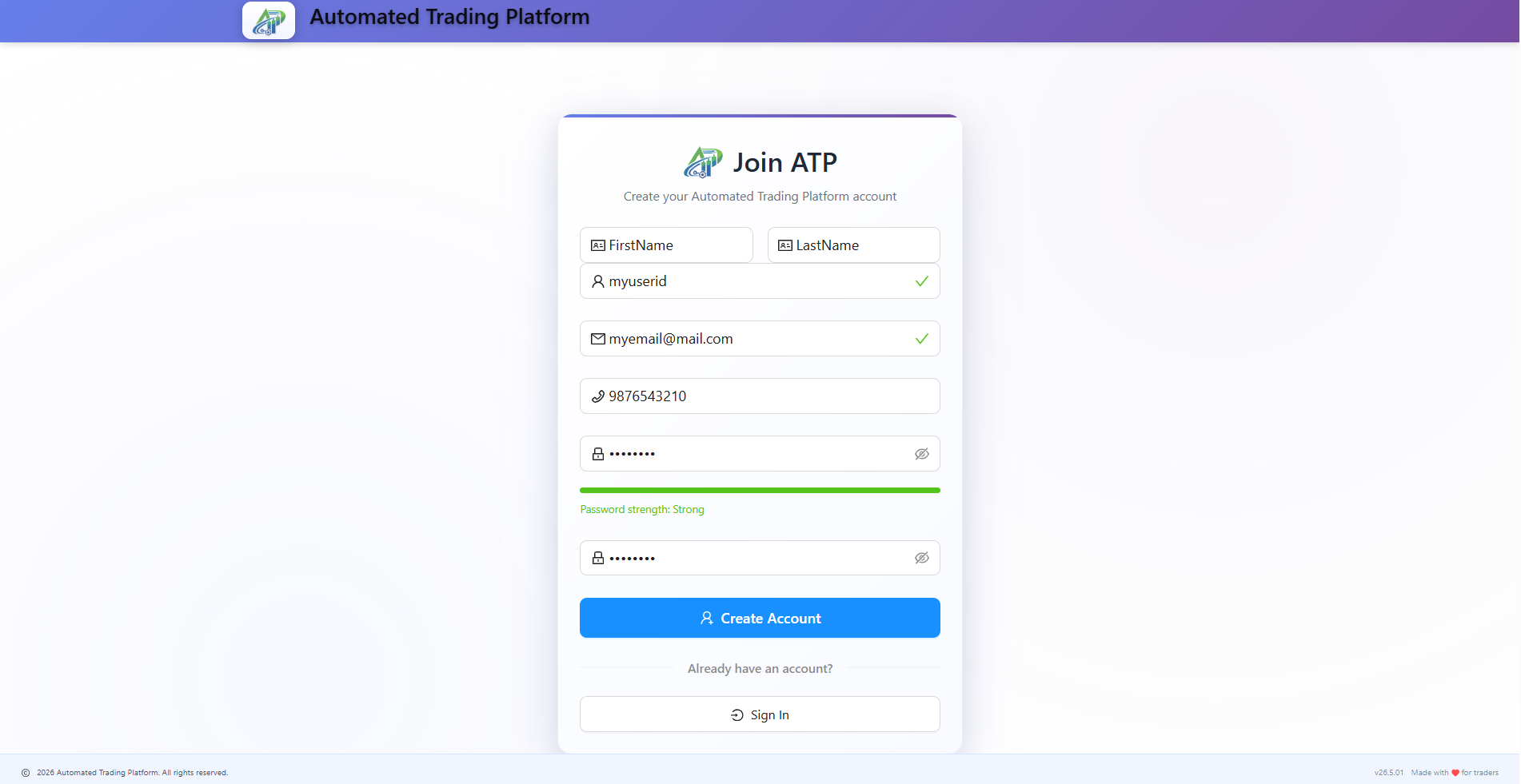
- New users: Open Create account on the signup page and register with username, email, and password — or sign in with Google on the login page (your account is created on the fly on first use).
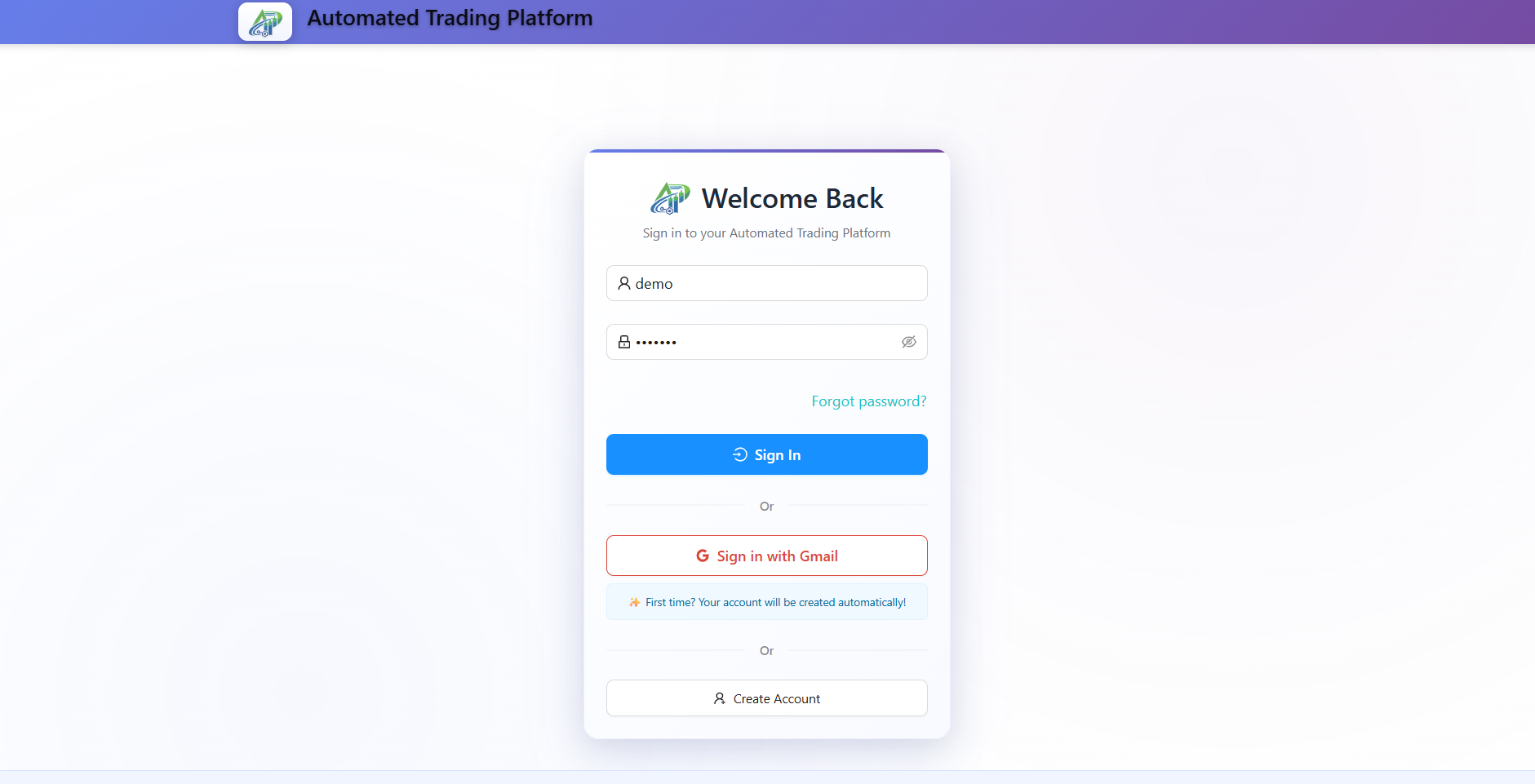
- Returning users: Sign in at the login page with username and password, or use Google if you registered that way.
- After sign-in you land on the Dashboard with the main menu on the left — use it to reach Strategy Builder, Run Console, Backtest, and Brokers.
- In Today's Runs, select a summary widget to filter the cards by total, active, positional, intraday, profitable, scheduled, or P&L-contributing runs. Total runs is selected by default, and Total Pnl updates to include only runs in the selected filter.
- To share performance, select Share With Others on a Today's Runs card, copy the public read-only link, and revoke it later from Run Console > Shared Runs. Public links hide private account and owner identifiers.
- Connect a broker under Brokers (or use Paper Trade for simulated execution).
- Create or clone a strategy, run a Single Strategy backtest, then Deploy from Run Console and monitor results on the Dashboard.
Pro tip
Use the ? help icon in the app toolbar on any page to jump directly to its documentation section.
Sign in page
Signup page